
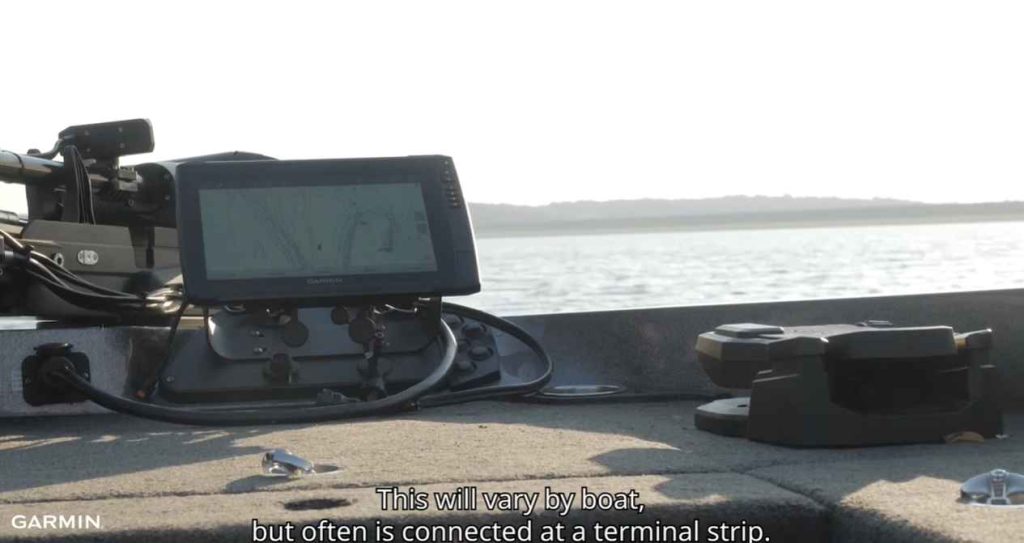
Troubleshoot Garmin Echomap issues by checking connections, updating software, and performing a factory reset. Ensure the device’s power source and cables are secure for a quick fix.

Garmin Echomap units are essential tools for anglers and mariners, providing crucial mapping and sonar data. Consistent performance is key, but sometimes users may encounter technical difficulties. This can range from screen problems, loss of power, and unresponsive keys, to issues with charts or sonar readings.
Garmin Echomap Troubleshooting- Dropping into troubleshooting is critical to resolve these interruptions and restore the device’s functionality. With straightforward solutions and a methodical approach, most Garmin Echomap issues can be diagnosed and rectified swiftly. Ensuring your device is up-to-date and all connections are sound is often the first step towards a smooth and reliable operation out on the water.
Common Installation Problems
If you encounter common installation problems with your Garmin Echomap, don’t worry—solutions are at your fingertips. One frequent issue is the need for a Garmin Echomap hard reset. When troubleshooting your Garmin Echomap 50s, pay attention to potential Garmin Echomap settings misconfigurations that might arise. Ensure seamless sonar performance by addressing Garmin transducer problems and resolving Garmin Clearvu not working issues promptly.
For those wondering, “How do I reset my Garmin Echomap?” a simple guide can save the day. Besides, when dealing with common installation problems, a crucial step is thoroughly testing the cradle. Power issues often stem from this component. By following these how-to reset and troubleshooting steps, you’ll navigate your Garmin Echomap’s installation hurdles with ease, ensuring a smooth and enjoyable marine experience.
Device Not Turning On
When your Garmin Echomap won’t power up, the initial steps are crucial to pinpoint the cause. Start by checking the basics:
- Power Source: Ensure the device is connected to a reliable power source.
- Connection Integrity: Inspect all connections for tightness and corrosion.
- Voltage Check: Confirm that the power cable is supplying the correct voltage with a multimeter.
If these steps don’t resolve the issue, it’s time to examine the device’s settings and internal conditions:
- Verify the battery is charged and functioning properly.
- Check for any blown fuses within the power cable or the system.
- Try performing a soft reset, as sometimes software glitches can prevent starting up.
In case the device still fails to turn on, it might suggest a deeper hardware problem that could require professional attention or contacting Garmin support.
Connection Issues With Transducer
For optimal performance from your fishfinder, proper transducer connection is vital. If you’re experiencing difficulties with transducer data, consider the following steps:
| Issue | Troubleshooting Step |
|---|---|
| No Sonar Data | Ensure the transducer is firmly connected to the Echomap unit and no pins are bent or damaged. |
| Intermittent Sonar | Inspect the transducer cable for any wear or damage along its length. |
| Weak Sonar Signals | Adjust the transducer angle and immersion depth for an unobstructed water path. |
Remember to also configure the Echomap’s settings to match the connected transducer model. Certain transducer models may require specific settings adjustments for accurate sonar performance. If issues persist, resetting the Echomap to factory defaults can often clear up configuration-related problems.

Software And Firmware Updates
Ensuring peak performance and unlocking the latest features of your Garmin Echomap is contingent upon maintaining up-to-date software and firmware. These updates play a pivotal role in enhancing device functionality, resolving existing issues, and introducing innovative features. Similar to the routine updates required for smartphones and other smart devices, keeping your Garmin Echomap current guarantees you harness the full spectrum of its technological capabilities. Stay ahead by seamlessly integrating advancements and optimizations into your navigation experience, ensuring a reliable and cutting-edge device every time you embark on your journeys.
Importance Of Updating Software And Firmware
Software and firmware are the invisible engines that keep your Garmin Echomap running smoothly. Here’s why it’s essential to stay current:
| Category | Details |
|---|---|
| Increased Features | Access the latest improvements and new tools designed to increase your navigation and fishing experience. |
| Bug Fixes | Updates address known issues, preventing potential glitches and ensuring your device runs efficiently. |
| Compatibility | Ensure compatibility with additional sensors or devices you may use in conjunction with your Garmin Echomap. |
| Optimized Performance | Enjoy improvements in speed, responsiveness, and overall stability of your device. |
Steps To Check And Install Updates
To guarantee that your Garmin Echomap operates at its best, regularly check for software and firmware updates. Follow these simple steps to ensure your device is up-to-date:
- Connect your Garmin Echomap to a Wi-Fi network or use an SD card to download updates from your computer.
- Access the ‘Settings’ menu on your device and select ‘System’.
- Look for ‘Software Update’ to check if any new versions are available.
- If updates are found, select ‘Install’ and allow the device to go through the update process.
- Follow on-screen instructions. The device may restart several times during the update.
- Once updated, verify the installation by checking the software version in the ‘System’ menu.
For those who prefer a manual method, download the latest software version from the Garmin official website, transfer it to an SD card, and insert it into your Echomap to initiate the update process.
Note that interrupting the update can cause issues, so ensure your device has enough power throughout the process. If you encounter any problems, Garmin’s support site offers detailed instructions, and customer service can assist.
Navigation And Mapping Problems

Navigation and Mapping Problems with the Garmin Echomap can be a mariner’s nightmare, effectively turning a reliable tool into a source of frustration. Common issues such as inaccurate GPS readings and difficulty in accessing or using maps can impede your navigational experience. This guide aims to help you troubleshoot these problems, ensuring you can rely on your Garmin Echomap for safe and precise navigation.
Inaccurate Gps Readings
If you’re experiencing inaccurate GPS readings on your Garmin Echomap, consider the following solutions:
- Check for Obstructions: Ensure your Garmin device has a clear view of the sky, free from obstructions that could block satellite signals.
- Software Updates: Running outdated software can lead to GPS inaccuracies. Check for the latest updates on your Echomap device.
- GPS Calibration: Reset or recalibrate your GPS settings. Refer to your Garmin Echomap manual for specific instructions.
Note: Persistent issues may require a factory reset or professional assistance.
Difficulty In Accessing Or Using Maps
Map accessibility problems can disrupt your navigation. Here’s how to address them:
- Check Map Installation: Ensure that the maps are correctly installed and licensed on your device.
- Map Updates: Like software, maps need updating too. Install any available map updates from the Garmin website.
- SD Card Inspection: If using an SD card for additional maps, verify it’s properly inserted and functioning. Formatting issues may require reinstallation.
Troubleshooting: If problems persist with accessing maps, a hard reset might be necessary. Back up important data before attempting this.
Sonar And Transducer Malfunctions
In Garmin Echomap troubleshooting, addressing Sonar And Transducer Malfunctions is crucial for seamless navigation. If you encounter issues like your transducer not reading depth or facing Raymarine transducer problems, don’t fret—there are solutions at your fingertips. For Lowrance 3 in 1 transducer problems, a systematic approach can make a significant difference. Use a multimeter to test the depth transducer with a multimeter accurately, ensuring precision in diagnostics.
One common hurdle is the ‘sonar source not available‘ error. To preemptively tackle this, focus on transducer interference prevention strategies. These not only resolve common sonar issues but also Increase the overall functionality of your Garmin Echomap. By incorporating these expert solutions, you pave the way for a smoother navigation experience, ensuring that your Garmin Echomap operates at its peak performance.
Weak Sonar Signal
A weak sonar signal can greatly reduce the effectiveness of your Garmin Echomap, potentially compromising your safety and success in fishing activities. Here are steps to troubleshoot a weak sonar signal:
- Check the power supply to ensure your device is receiving adequate voltage.
- Examine cable connections between the Echomap unit and the transducer for signs of wear or damage.
- Perform a soft reset on your unit to correct any software glitches.
- Update the Echomap firmware to the latest version.
- Adjust the sonar settings within the device, increasing the gain if necessary.
Should these steps not improve the signal strength, consider the possibility of interference from other electronic devices or contact Garmin Support for further assistance.
Transducer Mounting Issues
Correctly mounting the transducer is crucial for optimal sonar performance. Misalignment or improper installation can result in poor sonar returns and inaccurate depth readings.
- Ensure the transducer is mounted parallel to the waterline for an even signal.
- Verify that the transducer is not obstructed by the hull or other fittings.
- Double-check the tightness of the transducer mount to prevent slippage at high speeds.
- Consider the location of the transducer; it should be in clear water flow, away from propeller turbulence and hull disturbances.
Re-position or re-install the transducer if necessary after consulting the Garmin Echomap manual or seeking professional help. The position of the transducer can significantly impact the accuracy of the sonar readings, and thus, it’s critical to get this step right.
Troubleshooting Touchscreen And Interface

When your Garmin Echomap’s touchscreen and interface are not responding as they should, it can hinder your marine navigation experience. Efficient troubleshooting is vital to resolve such issues quickly and get back on course. The following sections dig into common problems with the touchscreen and interface system, providing step-by-step solutions that help you address these issues effectively.
Unresponsive Touchscreen
An unresponsive touchscreen can occur due to different factors, from simple software glitches to more serious hardware faults. Begin troubleshooting by:
- Performing a soft reset: Press and hold the power button for several seconds until the device restarts. This can sometimes fix minor software issues.
- Cleaning the screen: Dirt, water, and oils can interfere with touchscreen sensitivity. Use a microfiber cloth to gently clean the screen.
- Checking screen protectors: Poorly applied screen protectors can cause unresponsiveness. Ensure it’s applied correctly or remove it temporarily.
- Inspecting for damage: Look for any visible signs of damage that might affect the screen’s functionality.
Interface Freezing Or Lagging
If you encounter interface freezing or lagging, this can significantly affect your ability to navigate and access vital information swiftly. To restore optimal performance, consider the following steps:
- Restart your device: Similar to a computer, restarting your Garmin Echomap can clear temporary glitches causing the device to freeze.
- Update software: Keeping the device updated with the latest software is important. Check for updates in the Garmin Express application.
- Reduce on-screen information: Overloading the display with too much data can slow the interface. Customize your screens to show only what you need.
- Perform a factory reset: If all else fails, a factory reset might be necessary. Note that this will erase all user data, so ensure to back up important information first.
Through these steps, most touchscreen and interface issues can be managed, ensuring your Garmin Echomap continues to be a reliable companion on the water.
Frequently Asked Questions Of Garmin Echomap Troubleshooting
How Do I Reset My Garmin Echomap?
To reset your Garmin Echomap, press and hold the power button. Wait for the device to power off, then power it back on. For a factory reset, access the settings menu, select ‘System,’ then choose ‘Restore Defaults. ‘
Why Won’t My Garmin Echomap Turn On?
If your Garmin Echomap won’t turn on, several factors could be contributing to the issue. Here are some troubleshooting steps to help you identify and resolve the problem:
- Check Power Connection:
- Ensure that the power cable is securely connected to both the Garmin Echomap unit and the power source.
- Verify that the power source (battery or power outlet) is functional. Try using a different power source or outlet to rule out power supply issues.
- Inspect Fuse:
- If your Garmin Echomap is connected to a boat or vehicle, check the fuse in the power cable. A blown fuse can prevent the unit from turning on.
- Battery Level:
- If using a portable device or a unit with an internal battery, check the battery level. A low or depleted battery may be the cause. Charge the device or replace the battery if necessary.
- Hard Reset:
- Perform a hard reset by disconnecting the power source and removing the device from any mounts. Wait for a few minutes before reconnecting the power and attempting to turn it on again.
Can I Update Garmin Echomap Software?
Yes, you can update the software on your Garmin ECHOMAP device to ensure that you have the latest features, improvements, and fixes. Here are general steps you can follow to update the software:
- Connect to the Internet:
Ensure that your Garmin ECHOMAP device is connected to the internet. You may need to use Wi-Fi or connect it to a computer with internet access. - Install Garmin Express (if not already installed):
- If you are using a computer, you can download and install Garmin Express from the Garmin website (https://www.garmin.com/express/).
- If you are using a mobile device, you can check if there is a Garmin Connect app available for your platform (iOS or Android) and use it for updates.
- Connect your ECHOMAP device to the computer (if using Garmin Express):
- Use a USB cable to connect your ECHOMAP device to your computer.
- Open Garmin Express (if using a computer):
- Launch Garmin Express and follow the on-screen instructions to set up and register your device.
- Check for Updates:
- In Garmin Express, select your ECHOMAP device.
- If there are updates available, Garmin Express will prompt you to install them. Follow the on-screen instructions to complete the update.
- Wi-Fi Updates (if supported):
- Some Garmin devices support Wi-Fi updates, allowing you to update the software directly on the device without connecting it to a computer. Check your ECHOMAP device’s user manual for instructions on how to perform Wi-Fi updates.
- Follow on-screen Instructions:
- During the update process, follow any on-screen instructions provided by Garmin Express or your ECHOMAP device.
- Safely Disconnect:
- Once the update is complete, safely disconnect your ECHOMAP device from the computer.
Keep in mind that the exact steps may vary depending on the specific model of your Garmin ECHOMAP device, so it’s always a good idea to refer to the user manual or documentation that came with your device for detailed instructions. If you encounter any issues during the update process, you can also contact Garmin’s customer support for assistance.
Troubleshooting Garmin Echomap Sonar Issues?
Check transducer connections and ensure it’s not obstructed. Verify the sonar settings in the menu are correct. If problems continue, perform a soft reset or check for software updates.
Conclusion
Wrapping up, and tackling Garmin Echomap issues can be straightforward with the right steps. Bookmark this guide for when tech hiccups arise. Remember, updates and resets often work wonders. Safe navigation and happy fishing!
